
How to use Mai Drum
From tapping cells to write a drum score, to hearing it right away, to printing it out. Button names are written exactly as they appear on screen in the English app.
Phone web · tablet app
Mai Drum comes in two forms. A score file you make (.mai.json) opens in either one.
| Phone web (free) | Open maidrum.com/app in your phone's browser. No install, no account. Grid entry · playback · notation · PNG · PDF · file saving. Tap “Add to Home Screen” in the share menu and it opens like an app. |
| Tablet app (one-time purchase) | iPad from the App Store, Android tablets from Google Play. Everything above, plus a two-pane layout · Transcribe tab · Practice tab · Metronome tab · eDrum · eDrum Play · Library · Practice planner · pen notes · recorded drum kits. |
The tablet app switches screens with the tabs at the top — Edit · Score · Practice · Metronome · Transcribe · eDrum.
Pick the screen colors in Settings → “Color theme” — six to choose from (dark, light, cream, midnight, pink pastel, blue pastel). Scores and printouts stay the same.
Start a new score
- New song — in the app open “Library”, on the phone web open “Songs”, then tap “+ New song”. The song you were working on stays in the list.
- Title — type it in the title field at the top. The song shows under this name in the list.
- Time signature — 4/4 by default. Tap the time signature button to switch to 3/4 · 6/8 · 12/8 · 5/8 · 7/8 and others.
- Bars — −/+ change the count 4 bars at a time, you can also type a number, and “+ Bar” adds one bar.
- Entering notes — tap a cell in the grid to place a note, tap it again to remove it. Each row is a different instrument (hi-hat · snare · kick · toms …).
- Listen — press ▶ and the score and grid follow along.
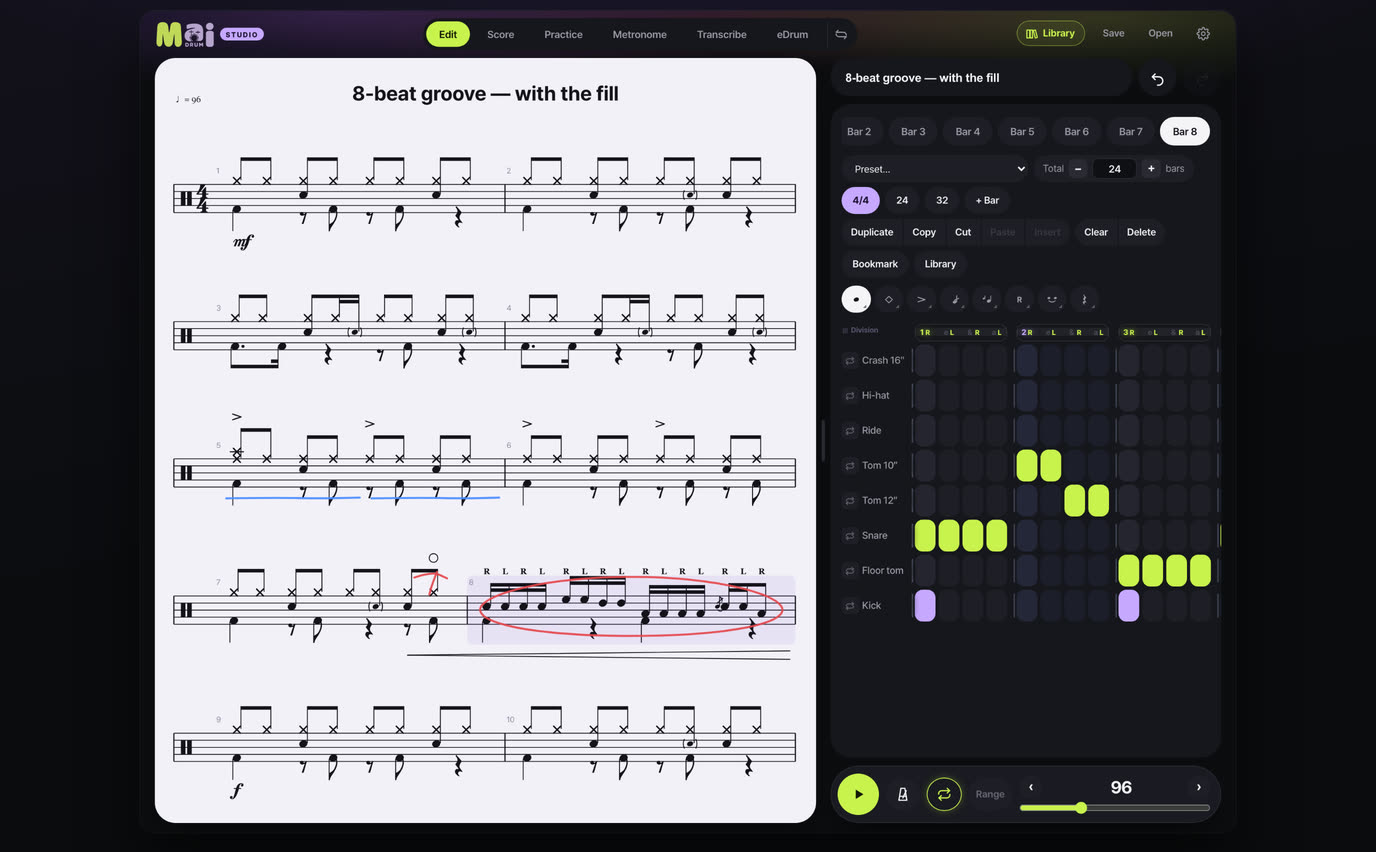
Not sure where to begin? Load 8-beat rock from “Preset” and change it from there. Rhythms you use a lot can be saved as My presets. Swiping the grid up and down scrolls, it doesn't enter notes — a slipping finger won't put a note in the wrong place.
Working with bars
- Tap a bar in the score or on the bar chips to bring it into the grid. Drag sideways to select several bars.
- The selected bars take Duplicate · Copy · Paste · Clear · Delete all at once. On a tablet, Cut · Insert work too.
- Long-press a bar chip and drag it to change the order.
- Made a mistake? Undo · Redo next to the title.
Choosing instruments
In Settings → “Choose · order · volume”, hide instruments you don't use, change their order and names, and set a volume for each one. Hiding an instrument doesn't delete its notes.
Special marks — ghost · accent · flam …
Pick the mark first, then tap the cells. Every tap uses the mark you picked, so putting the same mark in many places is quick. When you're done, go back to “Drum → Normal” to enter plain notes again.
| Group | What's in it |
|---|---|
| Drum | Normal · Ghost · Cross-stick · Rim shot · Slash |
| Cymbal | Ride bell · noteheads (Triangle · Asterisk · Circled X · Filled diamond) |
| Symbols | Accent · Marcato · Tenuto · Staccato · Open hi-hat · Half-open · Closed |
| Roll | Roll 1 · 2 · 3 · Buzz |
| Grace notes | Flam · Drag · Ruff — the grace note can be played on a different instrument |
| Hands | R · L · Alternate (above or below the staff — set it in Settings) |
| Tie | Tie (automatic) · Over · Under |
| Rest | quarter · 8th · 16th · 32nd — cuts the note off at that spot |
Each group button shows the mark you last picked in that group. Tap it again or long-press it to open the whole group. Accents go on top of other marks such as X noteheads and rim shots.
Triplets · quintuplets — Beat division
- Tap a beat number (1 · 2 · 3 · 4) above the grid to open the “Beat division” window.
- First choose whether to change This beat only or This whole bar.
- Hands — 3 is a triplet, 5 · 7 · 9 are quintuplets, septuplets and nonuplets, 6 is a triplet on each eighth note, 8 is 32nd notes. The number of cells in that beat changes, so tap those cells.
- Feet — kick and hi-hat pedal are divided separately. That gives you polyrhythms like 16ths in the feet under hand triplets.
- Mix half beats — inside one beat, the first half can be 16ths and the second half a triplet.
- 3 over 2 beats (quarter-note triplet) — one button, “Merge beats 1·2 — quarter triplet”, joins two beats and splits them into three.
Changing a division clears the notes in that beat. If it was a mistake, tap undo in the notice that appears.
Repeats · sections · dynamics · lyrics
These marks attach to bars, not notes. Playback follows repeats · 1st and 2nd endings · D.S. · D.C. · Coda · Fine.
- Phone — tap a bar in the score at the top, then tap it once more to open the “Score marks” window.
- Tablet — the tool rail on the left of the “Score” tab: Range · Repeat · Endings · Symbols · Dynamics · Lyrics · Pen. Tap a bar and the open tool follows that bar. Dynamics and symbols can be placed under the exact note you want with “Tap a note to place”.
- Pen — pen · highlighter · eraser · stroke eraser. Write anywhere on the score; it shows up in PDF and PNG too. In the Practice tab, open it with the pen button on the bottom bar.
- Line length — for a short line (cut off at the end of the song or before a section), choose Auto · Full width · Like other lines under “Per line” on the right tool rail.
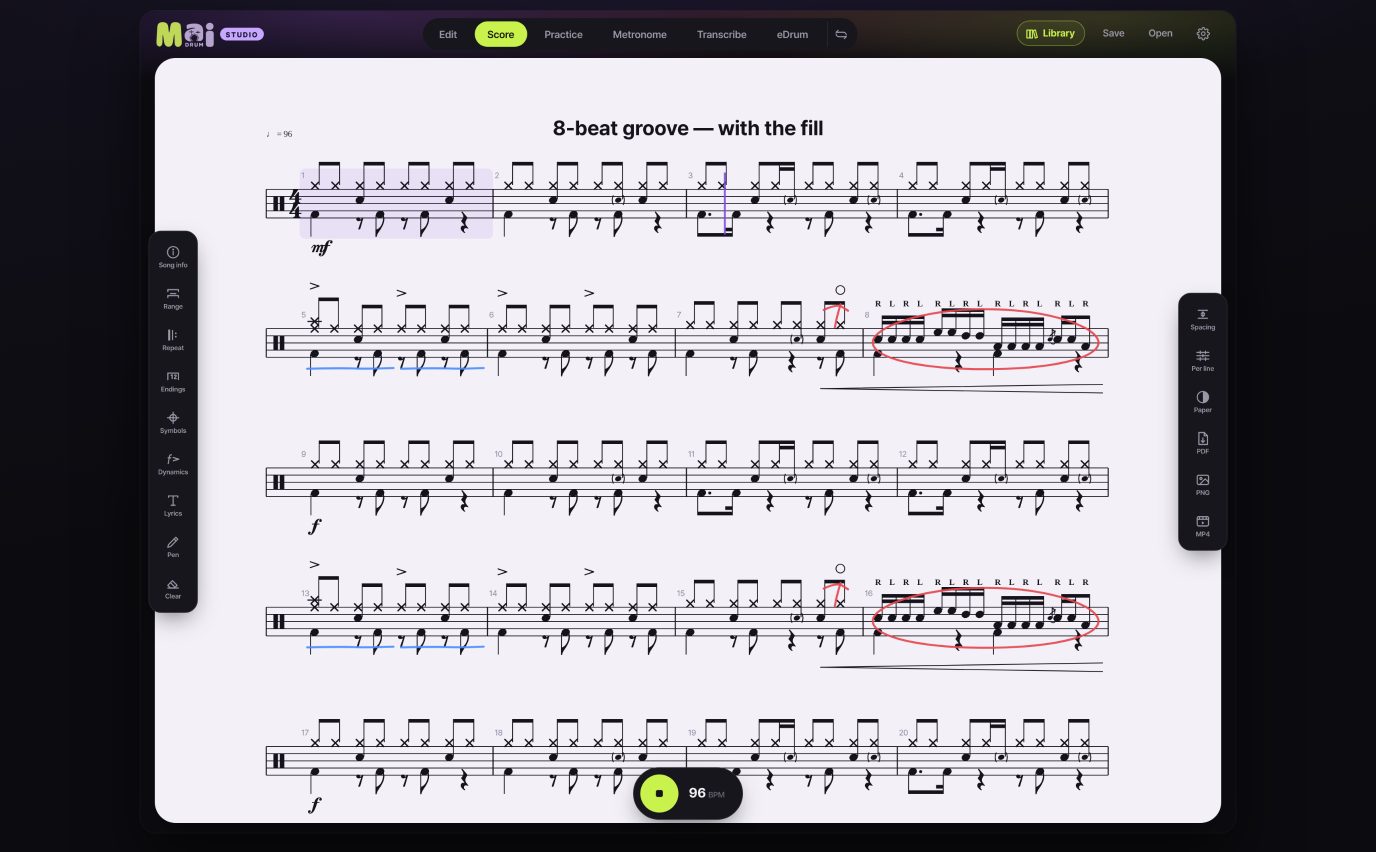
Song details (subtitle · lyrics · music · arrangement · copyright · tempo mark · swing — shuffle · half-time shuffle · score style) go in “Song info” on the left tool rail of the tablet “Score” tab. They print in the header of the first page.
Playback · tempo
- ▶ in the bottom bar plays and stops. On a keyboard, Space.
- BPM — the slider for rough settings, ‹ › for steps of 1. Tap the BPM number in time with the beat to set that tempo (tap tempo).
- Metronome button — each press cycles off → metronome → metronome + count-in. For the sound, choose Click or Voice (one · two · three · four) in Settings.
- The Loop button repeats the whole song; “Range” loops only the bars you pick.
- Double-tap a bar quickly to play just that bar. Select a bar and press ▶ to play from there.
- Drum volume and drum sound (Standard · Studio · Jazz · Electro) are in Settings. The recorded kits are in the tablet app only.
Save · export
Every change is saved on this device automatically. But it lives only inside this browser (or app), so it's gone if you switch devices or clear the data. Save scores you want to keep as files.
Tap Save at the top:
| .mai.json file | A file you can open again and keep editing. On another device, load it with “Open”. |
| PNG image | The whole score as one picture. Good for group chats and Instagram. |
| MusicXML | For moving a score into notation software like MuseScore, Dorico or Sibelius. MusicXML made in other programs also opens with “Open”, ready to edit. |
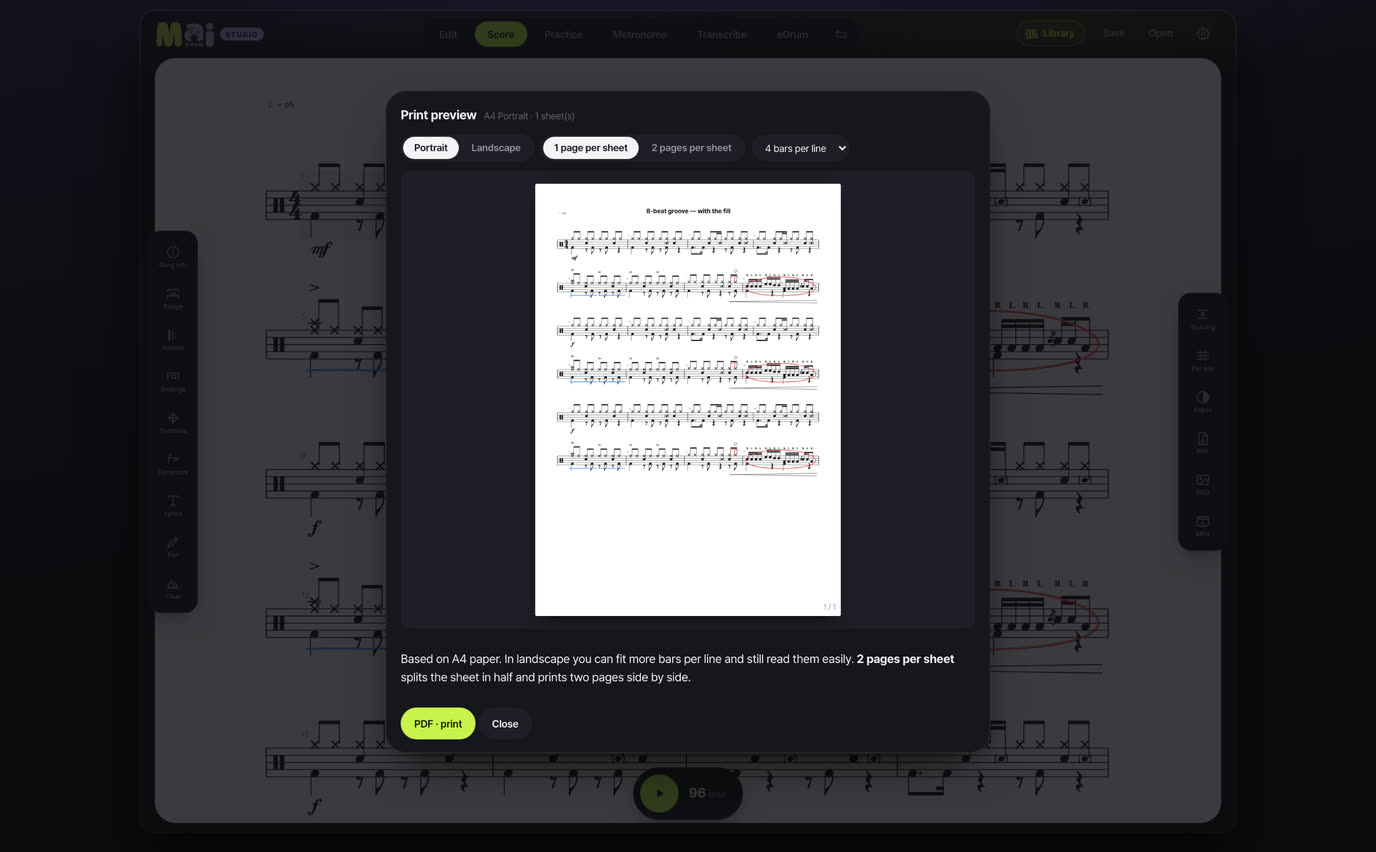
| PDF · print | In the preview, choose portrait · landscape · two pages per sheet and bars per line, then print. |
| Score video | An MP4 where the score scrolls past a fixed playhead. On a tablet, MP4 on the right rail of the “Score” tab (whole song); on the phone web, “Score video” in the Save window (a taste of the first 8 bars). Backgrounds: white · black · green (chroma key). |
To move songs to another browser, tap “Copy backup of all” in the song list, then “Import from paste” where you're moving them. Handy when you first opened the page inside an in-app browser such as KakaoTalk.
Practice sheets · My presets
Practice sheets — 40 rudiments
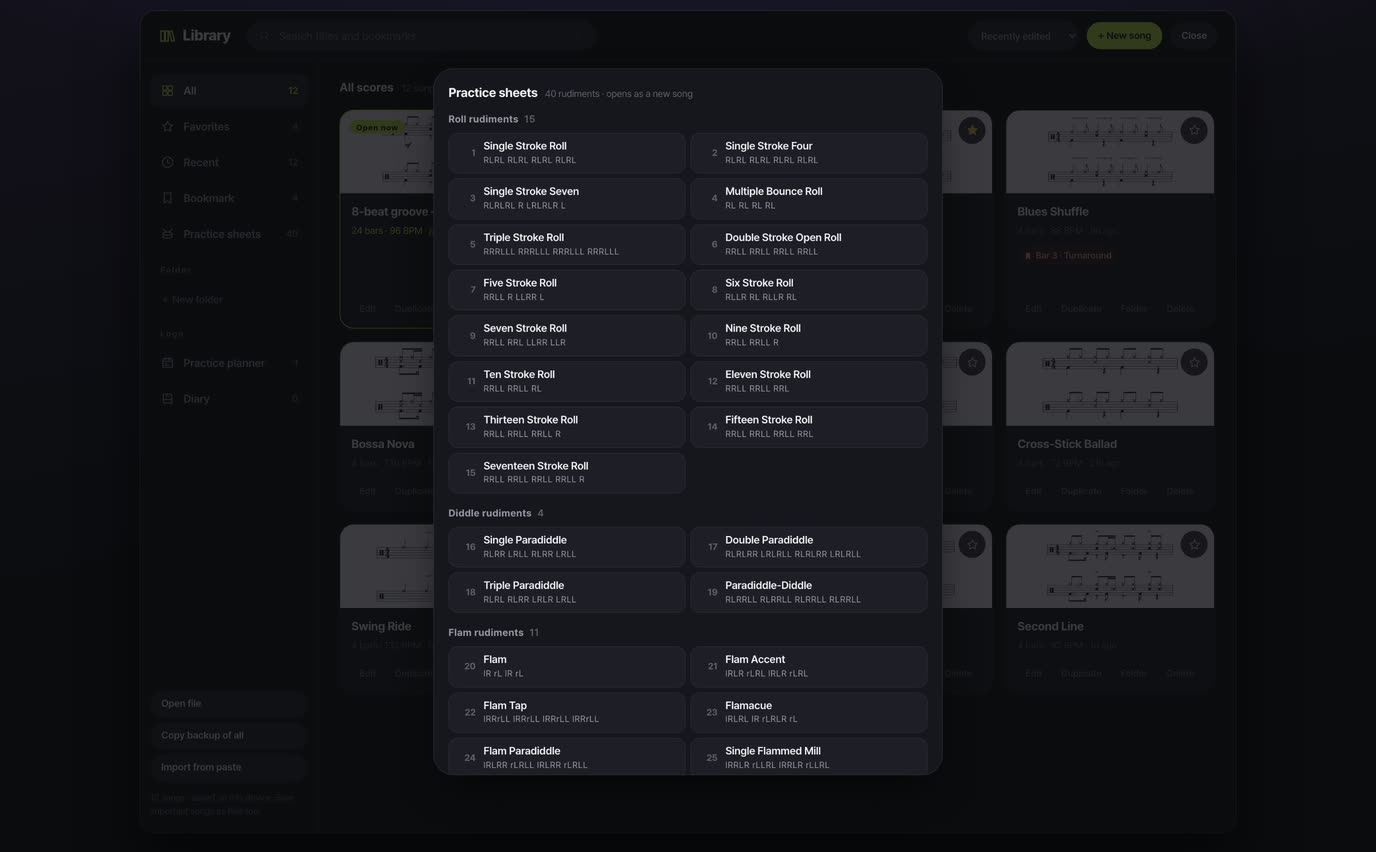
40 essential snare rudiments are built in — paradiddles, flams, drags, rolls and more. In the app, open “Practice sheets” in the Library; on the phone web, “Practice sheets · 40 rudiments” in the song list. Each one opens as a new song with the sticking (R · L) and accents written in, so you can change the tempo or edit it and the original stays as it is.
My presets
- Select the bars you use often (several bars work too), then choose “+ Save selected bars as a preset…” at the bottom of “Presets”.
- Give it a name and it appears under My presets in “Presets”. Pick it and it goes in from the selected bar.
- A one-bar preset fills every selected bar when you select several. Rename and delete in the same window.
Transcribe tab — write it down while you listen Tablet app
- Tap the Transcribe tab at the top. If the current song has notes, it starts a new score; if it's a song you already attached a video to, you carry on with it.
- Paste a YouTube link into the link box. The four icons next to it are Import · Find on YouTube · Paste · Open file. Audio and video files like mp3 · mp4 — and score images or PDFs — open with “Open file”.
- Speed 0.25 · 0.5 · 0.75 · 1×. Slowing down keeps the pitch the same. −5 · −2 s step back a little at a time.
- Set A · B to loop between them. Keep looping just the part you can't make out.
- Tap Bar 1 here on the first beat of the song to line up the video and the score. After that, “Follow” shows the bar you're hearing in the grid, and “Loop bar” loops only the bars you picked. “Tap BPM” measures the song's tempo.
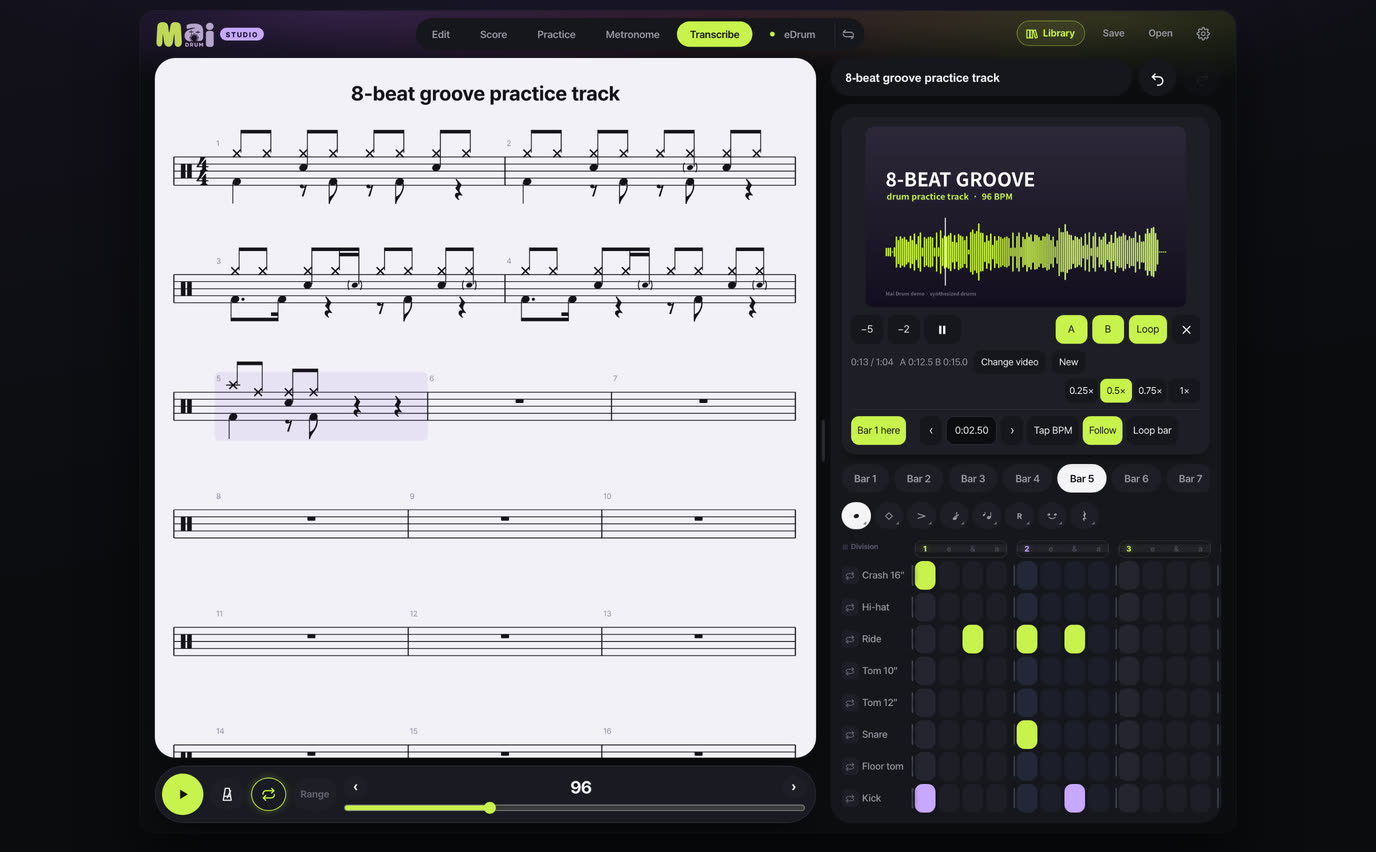
All eight instrument rows fit on one screen. On tablets up to 11 inches in landscape, the video and playback sit on the left with the score and grid on the right. The video title goes into the song title automatically (you can change it). The file itself isn't stored in the app, so next time open the same file again and your loop points and speed carry on.
Practice · metronome Tablet app
Practice tab
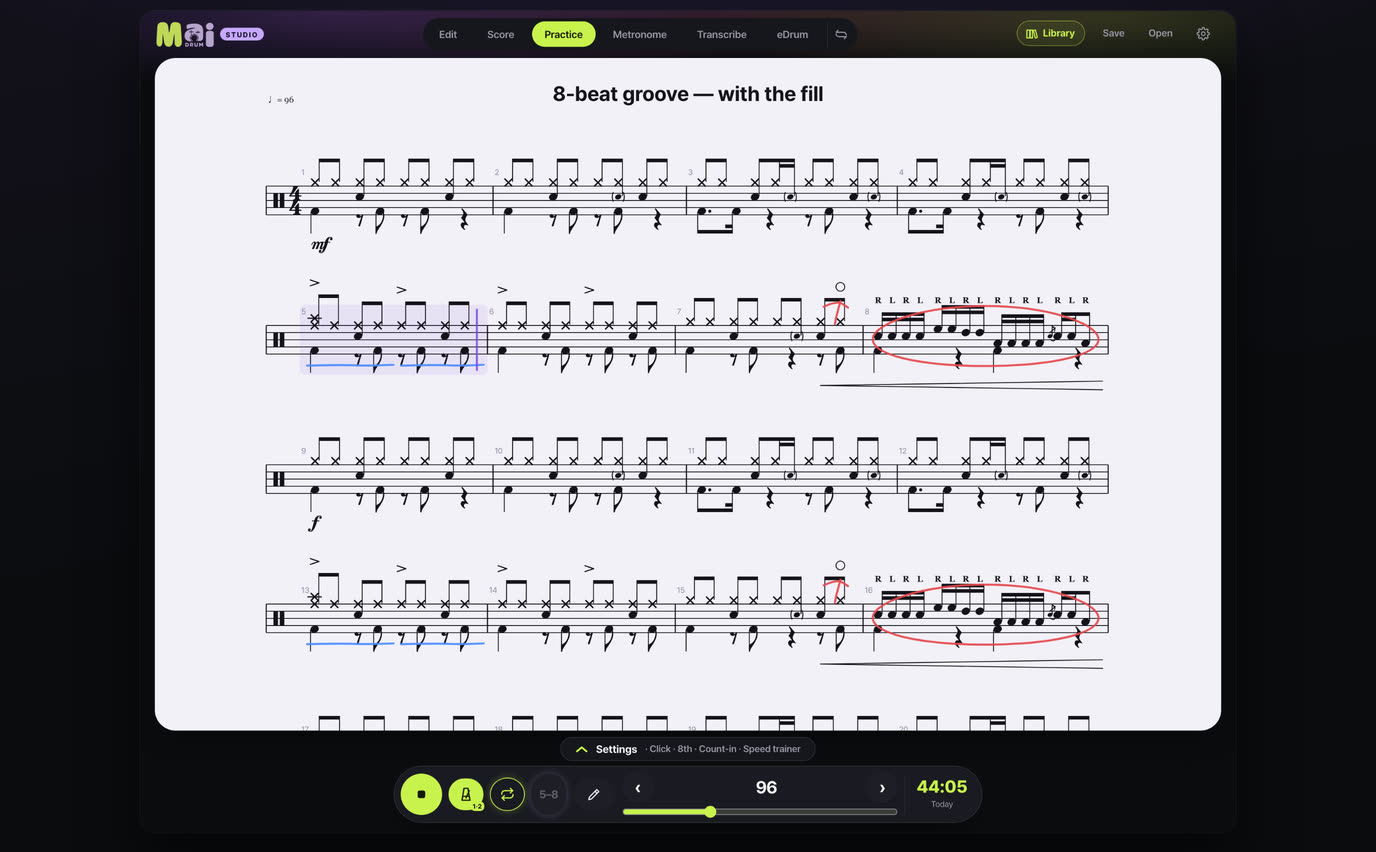
- The score fills the screen. Drag the handle at the bottom up to bring out the practice tools.
- Loop — set the bars to practice. When you switch songs it goes back to the whole song.
- Speed trainer — raises the BPM by a set amount every few passes, up to your target tempo.
- Drum volume — in front of a real kit, turn the app's drums down and hear only the click.
- Per beat — set each metronome beat to Accent · Soft · Mute.
- Pen — write on the score during practice with the pen button on the bottom bar. While the pen touches the score, it stops scrolling even during playback.
- Your playing time and BPM go into the Practice planner automatically, and “Practice card” makes a picture with your record over a photo.
Practice planner
- Library → “Practice planner”. Metronome, playback and editing time add up by day, week, month and year on their own.
- “+ Plan” sets what to do — date · score · target time · target BPM, repeating on chosen weekdays. Play that much and it checks itself off (you can also tick it by hand).
- “+ Log practice” keeps the day's mood and notes.
Metronome tab
- Basic shows only the big beat numbers; Full shows the setlist and tempo. In Basic, tap the pad to start · stop.
- Time signature · subdivision (triplet · 16th · 3 and 5 over 2 beats) · per-beat sounds · tap tempo.
- The “Settings” drawer at the bottom: click sound · voice · Gap trainer (click · mute · click bars) · Auto tempo (+N every bar or every minute) · Auto stop · Count-in · Random mute.
- Save settings for each song in the Setlist, and “From score” brings in the meter and repeats of the current score.
- With Bluetooth earphones the sound reaches you late — use “Visual delay” to match the screen to the sound.
Connect an electronic kit — eDrum Tablet app
- Connect the drum module's USB (MIDI) port to the tablet. For iPad, a USB-C cable or a camera adapter; for Android tablets, an OTG cable.
- Open the eDrum tab at the top. The first time you connect, it suggests a Device check — 30 seconds of hitting each pad in turn, starting with the kick. The app learns the pad numbers and velocities your module sends.
- Press Record and play — it's written out as a score lined up to the beat. Velocity decides ghost or accent.
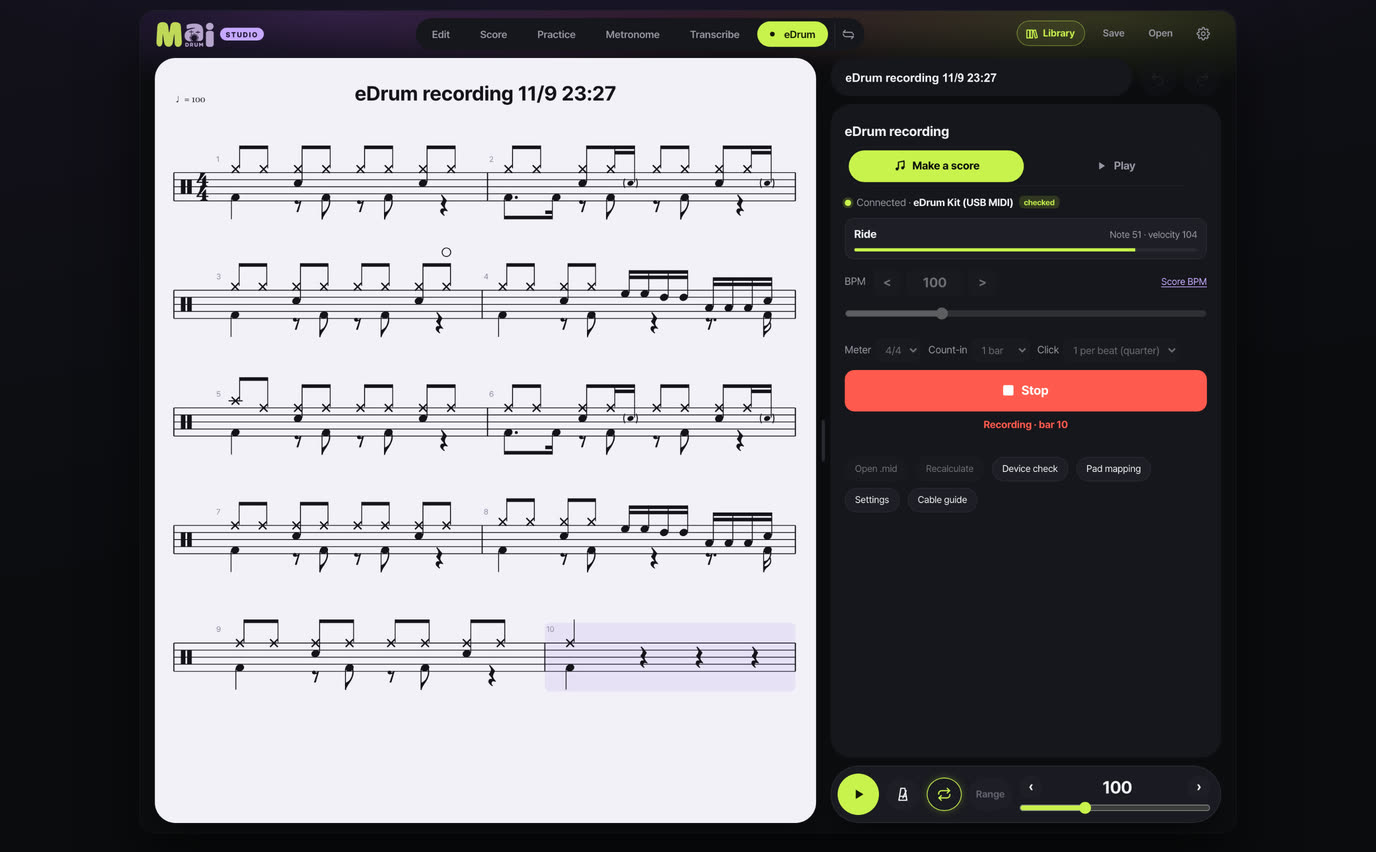
No e-kit? Try it first with “Play with the keyboard”. We keep improving the accuracy — if your module doesn't line up well, let us know.
eDrum Play — play and get scored Tablet app
- In the eDrum tab, choose Play in the “Make a score / Play” switch at the top and it opens full screen. It starts with the current song; “Change score” picks another one from your Library.
- If your electronic kit is connected, just play. Without one, tap the drum photo below or use the keyboard.
- The score scrolls by on top. Play with the playhead and each hit is judged PERFECT · GREAT · GOOD · MISS. String PERFECTs together and a combo builds.
- At the end you get a grade, accuracy per instrument and a score for every bar. “Retry weak bars” replays only the bars that missed, and “Review my take” lets you step through your playing bar by bar.
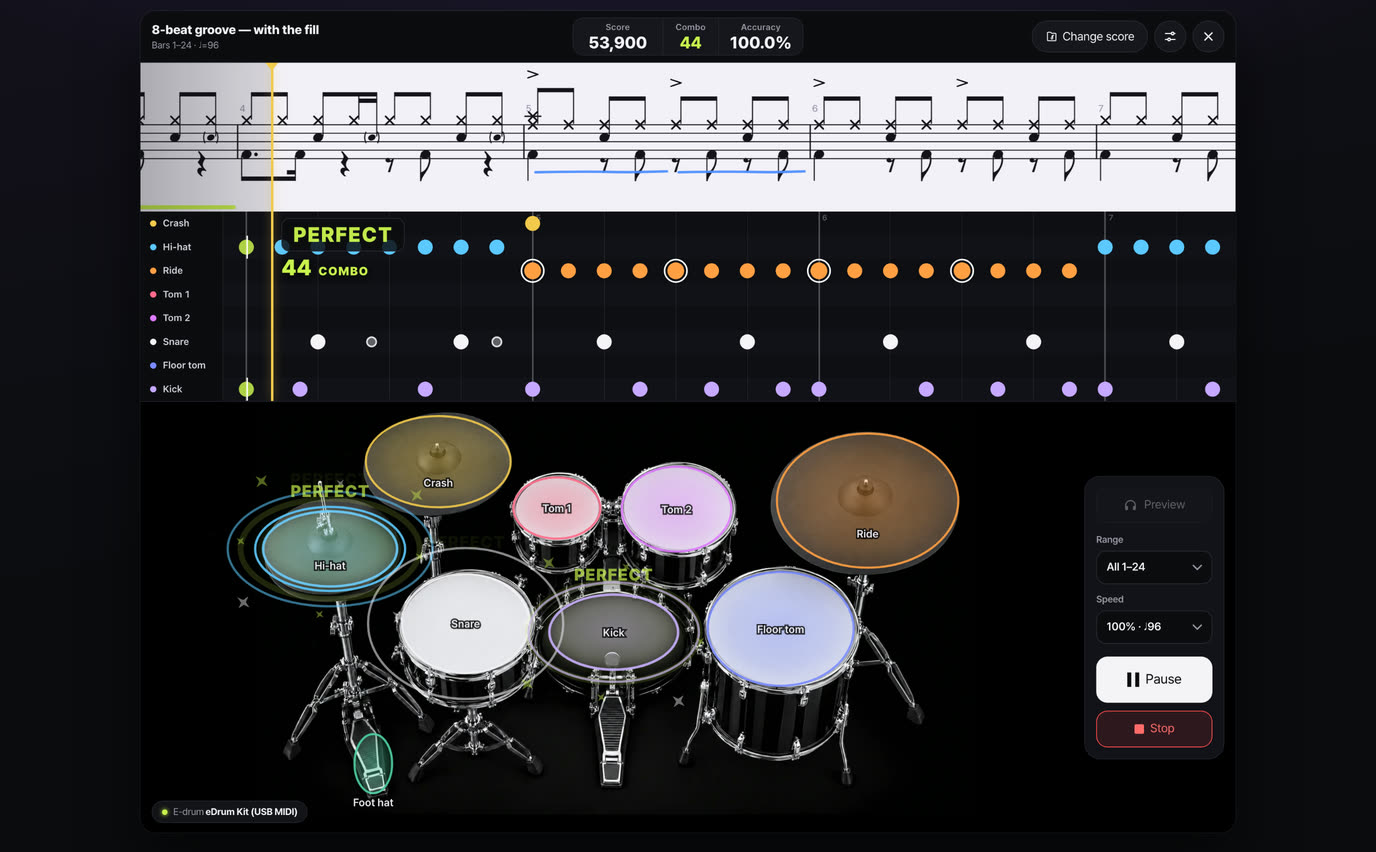
On the right choose Preview · Range · Speed (0.5–1.2×). In Game settings (the gear) change judging difficulty, dynamics scoring, the metronome click (quarters or every eighth), count-in, guide sound and instrument colors.
Electronic kits use the device check and latency offset from the eDrum tab. If you listen through Bluetooth earphones, run “Latency offset” once.
Keyboard shortcuts Tablet app · Mac
For an iPad with a Bluetooth keyboard, or a Mac. Press “?” to see the list in the app, and change any key in Settings → “View · change shortcuts”.
| ← → | Previous · next cell · with ⇧, previous · next beat |
| [ ] | Previous · next bar |
| K S H O F | Kick · Snare · Hi-hat · Open hi-hat · Foot hi-hat |
| C R 1 2 3 | Crash · Ride · Tom 1 · Tom 2 · Floor tom |
| G A X Esc | Ghost · Accent · Cross-stick · Back to normal |
| ⌫ | Clear the cell |
| ⌥ + 2 3 4 6 8 | Divide that beat |
| ⌘↵ · ⌘D | Add bar after · Duplicate bar |
| ⌘C · ⌘V · ⌘⌫ | Copy bar · Paste bar · Delete bar |
| Space · T · ⌘Z | Play · Tap tempo · Undo |
After you enter a note the cursor stays where it is (handy for stacking kick + hi-hat). To move on to the next cell automatically, turn on “Move to the next cell after each note” in the shortcut window. On a Windows keyboard, use Ctrl instead of ⌘.
Common questions and contact details are on the support page.